
Connections
Create, secure, organise, and manage Oracle database connections in Nexo SQL Studio.
Connections
Nexo SQL Studio’s Connections Explorer is the command centre for every Oracle database you work with. A connection combines an Oracle connect identifier, authentication details, and Nexo-specific safety and integration settings.
Adding a Connection
Open the Connections Explorer from the Activity Bar, then click Add Connection in its toolbar.
Choose how to provide the Oracle connect identifier:
- Specify by fields (default) builds an Easy Connect string from host, port, protocol, and either a service name or SID.
- Raw connect string accepts an Easy Connect string such as
db.example.com:1521/ORCLPDB1, a TNS alias such asMYDB_HIGH, or a complete Oracle Net connect descriptor.
Fill in the connection form:
| Field | Example |
|---|---|
| Connection name | Production DB |
| Host | db.example.com |
| Port | 1521 |
| Service / SID | ORCLPDB1 |
| Username | hr |
| Password | •••••••• |
Use a service name for modern pluggable databases. Select SID only for databases that require the legacy SID form. Test checks the current, unsaved values. Save validates the form and stores the connection.
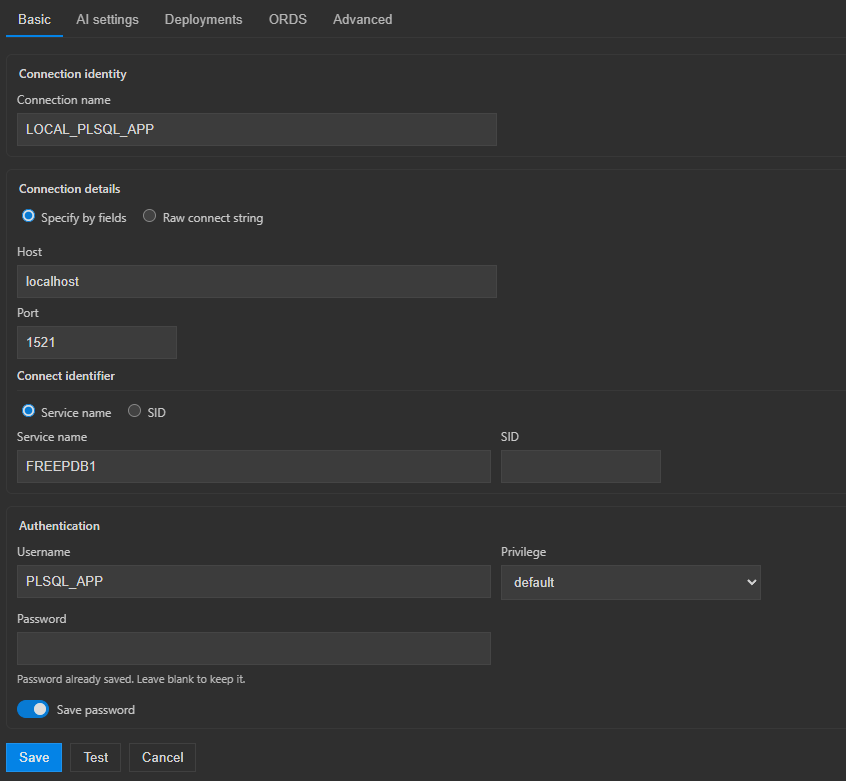
The Basic tab supports structured fields or a raw connect string, database credentials, administrative privilege, password storage, and testing before save.
Network and protocol options
The structured form supports TCP and encrypted TCPS. Its network tuning values are written into the generated Easy Connect string and therefore apply to direct connections:
| Option | Effect |
|---|---|
| Connect timeout | Maximum time allowed for the overall connection attempt |
| Transport connect timeout | Maximum time allowed to establish a connection to one network address |
| Expire time | Interval in minutes between Oracle Net keepalive probes |
| Retry count | Number of connection retries after the first attempt |
| Retry delay | Seconds to wait between retries |
For multi-host addresses, load balancing, failover descriptors, proxy settings, certificate DN matching, or other Oracle Net clauses, use Raw connect string or a TNS alias instead of the structured fields.
Wallets and Oracle Net files
- Config directory points to the directory containing optional Oracle Net files such as
tnsnames.ora. It is required when a raw connect string is a TNS alias and those files are outside the driver’s configured default location. - Wallet location points to the extracted wallet directory. In the default node-oracledb Thin mode, the directory must contain a PEM wallet such as
ewallet.pem. - Wallet password decrypts an encrypted PEM wallet. It is a wallet secret, not the database-user password.
Autonomous Database wallets commonly use the same extracted directory for both Config directory and Wallet location. Select TCPS, use the service alias from tnsnames.ora, and provide the wallet password when the PEM file is encrypted. On Windows, select the directory itself; do not enter the wallet ZIP path.
Authentication and advanced settings
- External authentication omits the database username and password and asks Oracle to use an externally established identity. It only works when the local Oracle authentication configuration supports it.
- Privilege requests an Oracle administrative mode such as
SYSDBA,SYSOPER,SYSASM,SYSBACKUP,SYSDG,SYSKM, orSYSRAC. The account must have the selected privilege. - Production connection applies Nexo’s production safeguards; it does not change the Oracle network session.
- Object locking enables Nexo’s optional development-only object protection when its database component is installed. Do not enable it for production databases.
When editing a connection with an existing saved password, leave the password field empty to keep it. Disable Save password to remove the saved credential, or enter a new value to replace it.
AI, deployment, and ORDS settings
The other editor tabs configure behavior around the same database connection:
- AI settings controls whether MCP can see the connection, whether read or write operations are allowed, and which operations require confirmation.
- Deployments selects defaults used when this connection is a deployment target.
- ORDS stores the public HTTP or HTTPS base URL used to run discovered ORDS endpoints when the database host and public endpoint differ. Do not include credentials in this URL.
- Advanced contains protocol, timeout, retry, Oracle Net, wallet, external authentication, production, and object-locking settings.
Organising connections
Connections can be placed in nested folders, with optional colors for visual identification. Folder settings inherit into nested folders and can override production status, object locking, AI read/write access, and confirmation rules. A locked inherited value is shown in the connection editor together with the folder that supplied it.
Workspace folders can also resolve to a default connection for project-specific SQL, navigation, and deployment workflows. Keep team-wide mappings in workspace configuration only when sharing that behavior is intentional.
Daily connection actions
- Expand or connect a saved connection to load its database objects.
- Use Test inside the editor when changing connection details.
- Edit a connection to change its metadata or integration settings without recreating it.
- Disconnect it to close the active database session while retaining the saved profile.
- Delete a connection only when you also intend to remove its saved profile and credentials.
Connection Security
- Saved database passwords and wallet passwords use VS Code SecretStorage, backed by the editor and operating system’s credential facilities.
- Connection metadata such as username, connect string, protocol, and safety settings is stored separately from secrets.
- AI clients do not receive connection credentials. MCP policies decide which connections and operations Nexo exposes.
- Mark production connections and review inherited folder policies before enabling write operations.
Import and export
Nexo can import SQL Developer JSON exports and its own .nexoconn files. It can also export selected Nexo connections, folders, portable settings, and policies. See Importing and Exporting Connections for the supported data and password limitations.